> For the complete documentation index, see [llms.txt](https://dynamicshelp.broadstream.com/llms.txt). Markdown versions of documentation pages are available by appending `.md` to page URLs; this page is available as [Markdown](https://dynamicshelp.broadstream.com/get-started/chapter-index/activate-the-product.md).
# Activate Dynamic Graphics
Activate Dynamic Graphics on this computer, or deactivate another computer so you can move your license. Each Dynamic Graphics license allows one person to use Dynamic Graphics on one computer at a time.
* [Activate online](#activate-online)
* [Activate offline](#activate-offline)
* [Move your license to another computer](#move-your-license-to-another-computer)
## Activate online
Use this when the computer running Dynamic Graphics is connected to the internet.
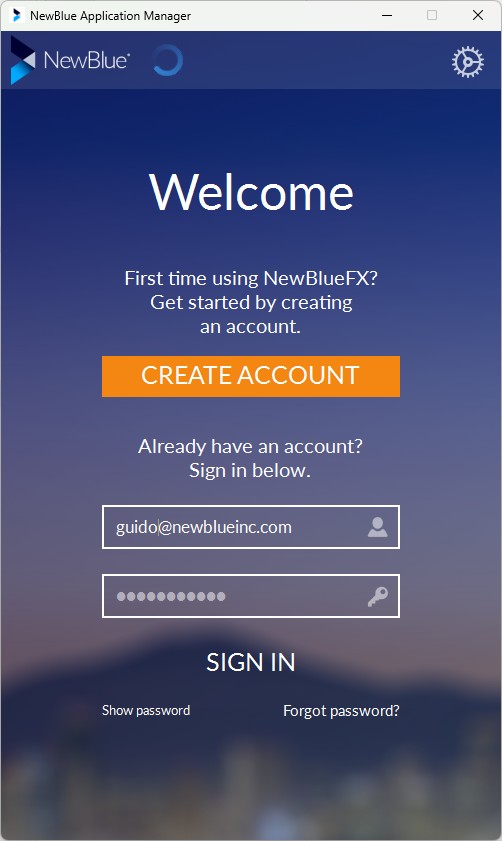
1. Open the NewBlue Application Manager. Open it from Dynamic Graphics’s **Help** menu, from the Windows Start menu, or from `/Applications` on macOS. If Dynamic Graphics shows the **Activation Is Required** dialog, click **Launch Application Manager**.
2. Sign in with your NewBlue account. If you don’t have one, click **Create Account** and complete the form.
3. If Dynamic Graphics activates automatically, you’re done.
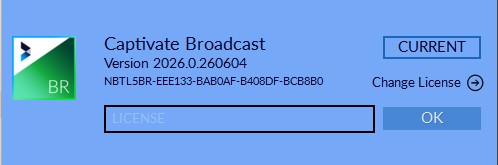
4. If Dynamic Graphics does not activate automatically, click **Enter License** next to Dynamic Graphics.
5. Enter your license and click **OK**.
6. Activated, up-to-date products are described as current in the Application Manager.
If you sign in with the account that purchased Dynamic Graphics, activation may happen automatically. If Dynamic Graphics was purchased under a different account, enter your license manually.
## Activate offline
Use this when the computer running Dynamic Graphics is not connected to the internet. You’ll need a second computer with internet access and a USB stick (or another way to transfer text between them).
You’ll move two pieces of text between the offline computer and an online one: first an activation URL, then an activation response text.
1. **On the offline computer:** open the NewBlue Application Manager from Dynamic Graphics’s **Help** menu, from the Start menu (Windows), or from `/Applications` (macOS).
2. Click **Enter License** next to Dynamic Graphics.
3. Enter your license and click **OK**.
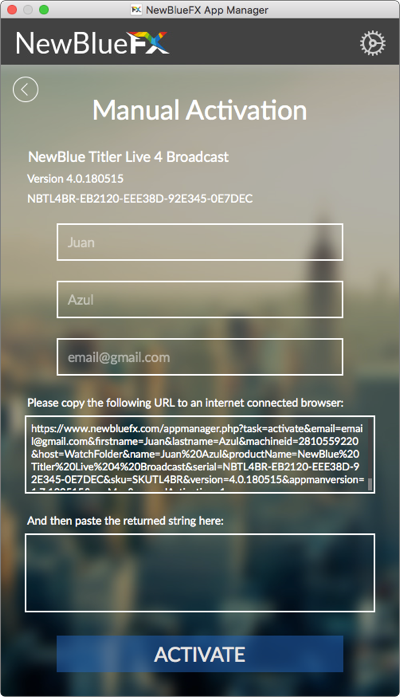
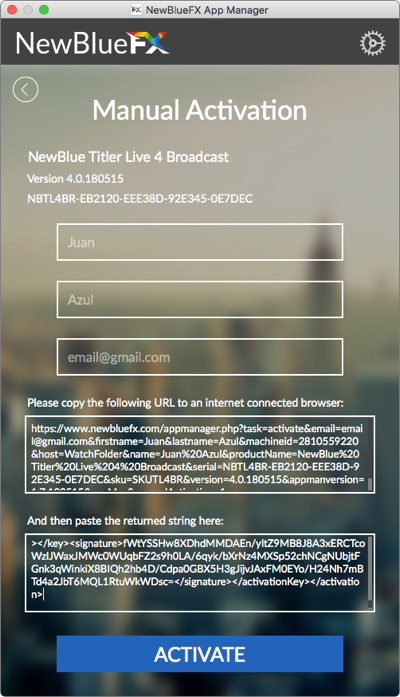
4. In the Manual Activation form, enter your **First Name**, **Last Name**, and **email** address. If you have a NewBlue account, use the email associated with it.
A unique URL appears.
5. Copy the URL onto a USB stick (or any other transfer method).
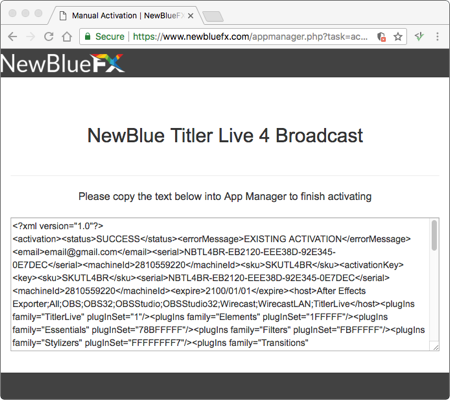
6. **On the online computer:** paste the URL into a browser and press **Enter**. The web page returns an activation text string.
**📌 NOTE**\
If the email address isn’t associated with a NewBlue account, the page asks you to create one first.
7. Copy the activation text string back onto the USB stick.
8. **On the offline computer:** paste the activation text into the Manual Activation form.
9. Click **Activate**. Dynamic Graphics is now activated.
## Move your license to another computer
To move your license, deactivate Dynamic Graphics on the current computer, then activate it on the new one.
{% hint style="info" %}
Deactivating from the Application Manager deactivates all NewBlue products on this computer, not just Dynamic Graphics. The products still launch, but their outputs are watermarked until you reactivate.
{% endhint %}
### Deactivate Dynamic Graphics on the current computer
1. Open the NewBlue Application Manager on the computer where Dynamic Graphics is currently active.
2. Click **Settings** and choose **Deactivate**.
3. Click **Deactivate** to confirm.
4. Close the Application Manager.
### Activate Dynamic Graphics on the new computer
1. Install Dynamic Graphics on the new computer if you haven’t already.
2. Open the NewBlue Application Manager.
3. Click **Settings** and choose **Activate**.
4. Sign in with the same email and password you used on the previous computer.
Dynamic Graphics and all NewBlue products on this computer are automatically activated after you sign in.
## Related
* [About the NewBlue Application Manager](/get-started/chapter-index/application-manager.md) — what the Application Manager does and how to use it.
* [Activation flow reference](/reference/license-activation-flow.md) — what triggers each path, what the banner means, and how seat moves work.
---
# Agent Instructions
This documentation is published with GitBook. GitBook is the documentation platform designed so that both humans and AI agents can read, navigate, and reason over technical content effectively. Learn more at gitbook.com.
## Querying This Documentation
If you need additional information that is not directly available in this page, you can query the documentation dynamically by asking a question.
Perform an HTTP GET request on the current page URL with the `ask` query parameter, and the optional `goal` query parameter:
```
GET https://dynamicshelp.broadstream.com/get-started/chapter-index/activate-the-product.md?ask=&goal=
```
`ask` is the immediate question: it should be specific, self-contained, and written in natural language.
`goal` is optional and describes the broader end goal you are ultimately trying to accomplish on behalf of the user. GitBook uses it to tailor the answer towards what is most useful for that goal.
The response will contain a direct answer to the question and relevant excerpts and sources from the documentation.
Use this mechanism when the answer is not explicitly present in the current page, you need clarification or additional context, or you want to retrieve related documentation sections.